How to Opt In and Apply DSPay via GO
Modified on: 2026-09-22 15:04
TABLE OF CONTENTS
Overview
Distributors who have an agreement with DerbySoft to use DSPay are eligible to opt in via Go Console. After opting in, you can apply DSPay when establishing connections with suppliers. This guide covers both the opt-in process and the connection setup.
Prerequisites
- You have an agreement with DerbySoft to use the DSPay service.
- Your wallet has been topped up (required before starting a connection with a supplier).
- You have provided your Customer Support Contact (email or phone) to your CM so they can configure DSPay reservation notifications for you.
Part 1: Opt In to DSPay via Go Console
Step 1 Submit your opt-in request
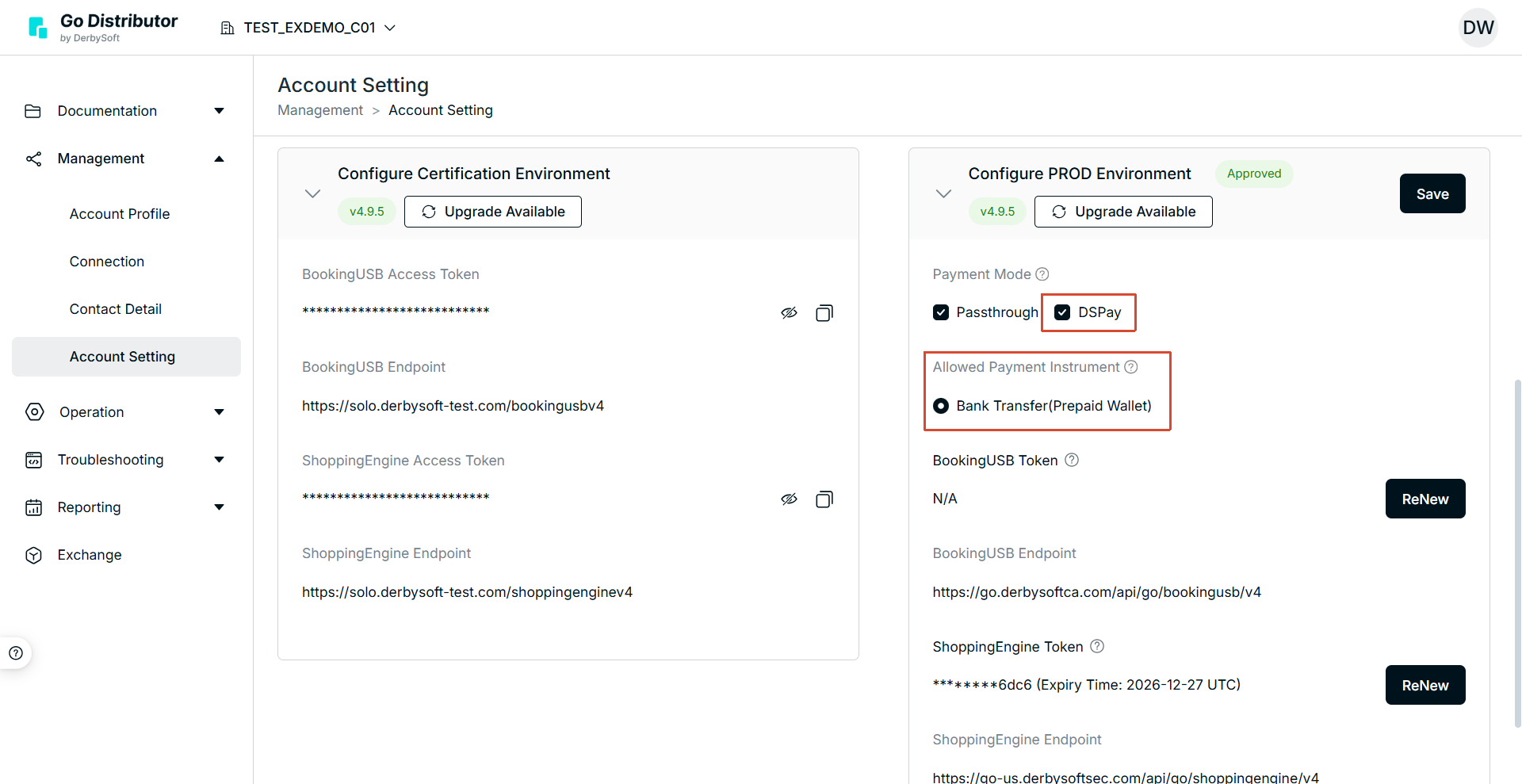
Log in to Go Console and navigate to Account Setting > Config PROD Environment > Payment Mode. Tick DSPay and click Save to submit the opt-in request.
Step 2 Approval and post-approval
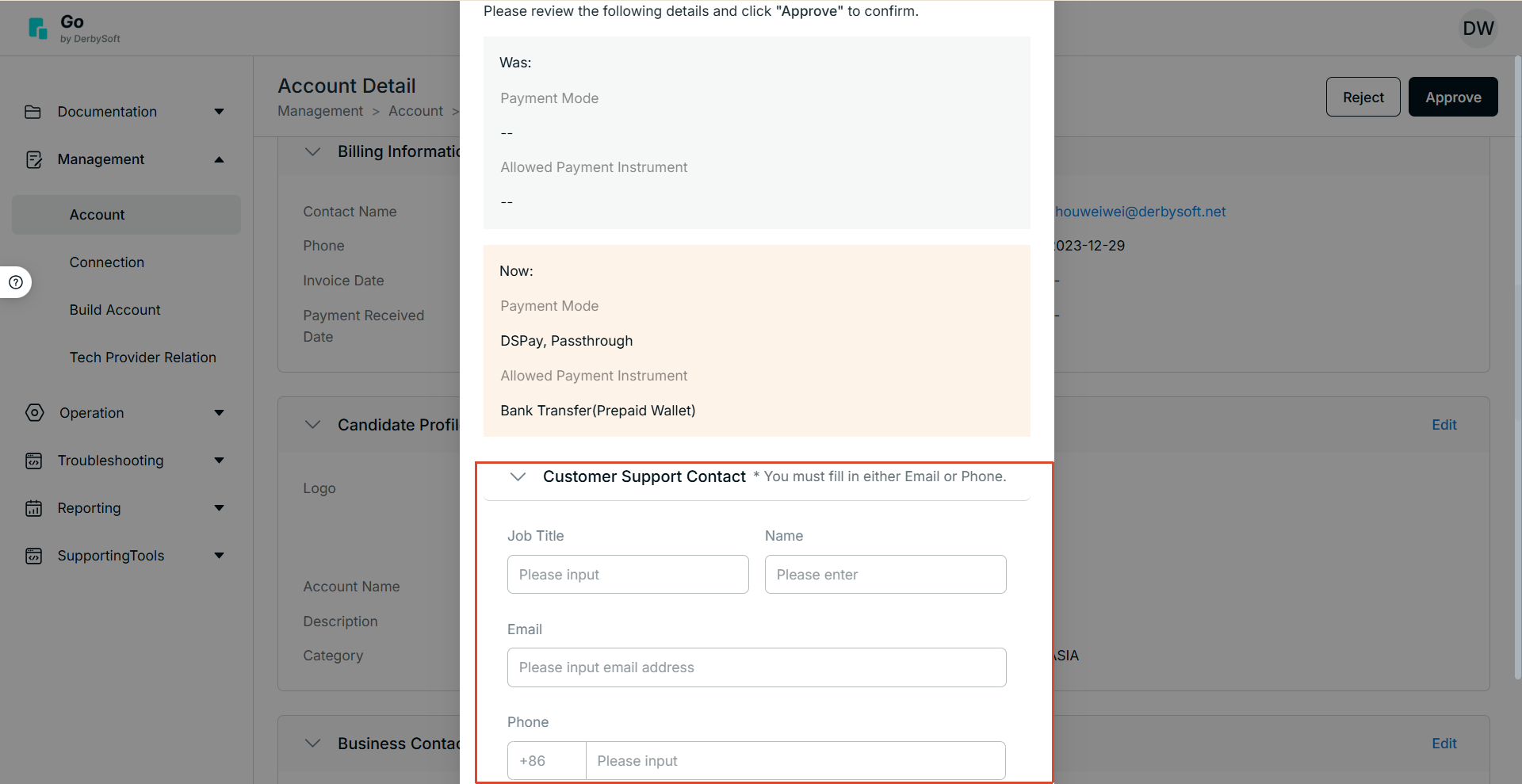
The DS Admin will review your request and approve it accordingly. During approval, the DS Admin will complete the required approval form. This information can be altered later on the Account Detail page.
What Happens Next
The DS Admin will review your request and approve it accordingly. During approval, the DS Admin will complete the required approval form.
Important Notes
① Please ensure your Customer Support Contact (email or phone) has been provided to your CM. This allows DSPay-related reservation notifications to be configured correctly.

② If the DSPay option is not available or you have questions about eligibility, please contact your CM.
Part 2: Apply DSPay in Connection
Step 1 Check wallet and find suppliers
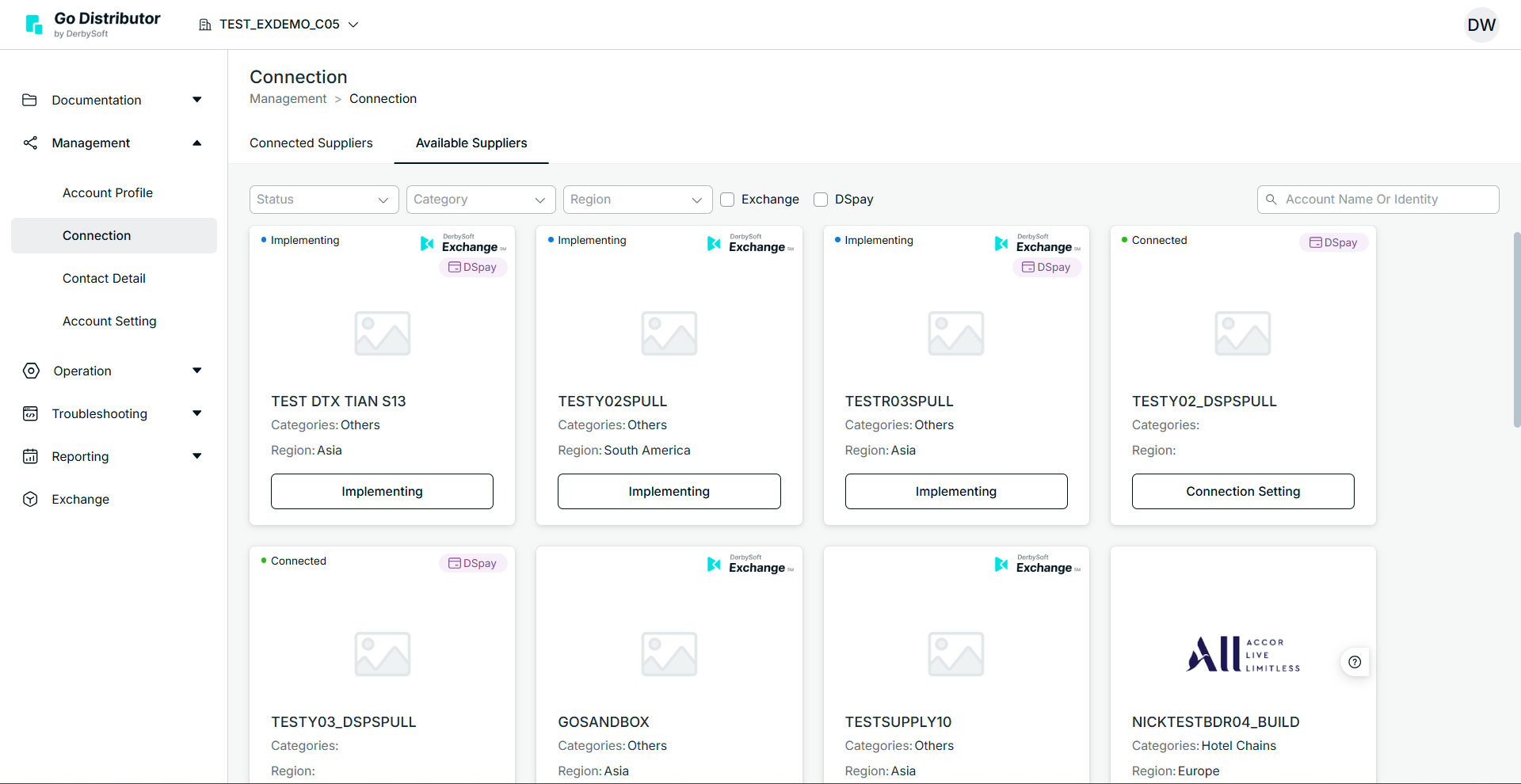
Ensure your wallet is topped up, then navigate to Management > Connection > Available Suppliers. Suppliers that support DSPay will display a DSPay label on their card.
Step 2 Configure DSPay and submit
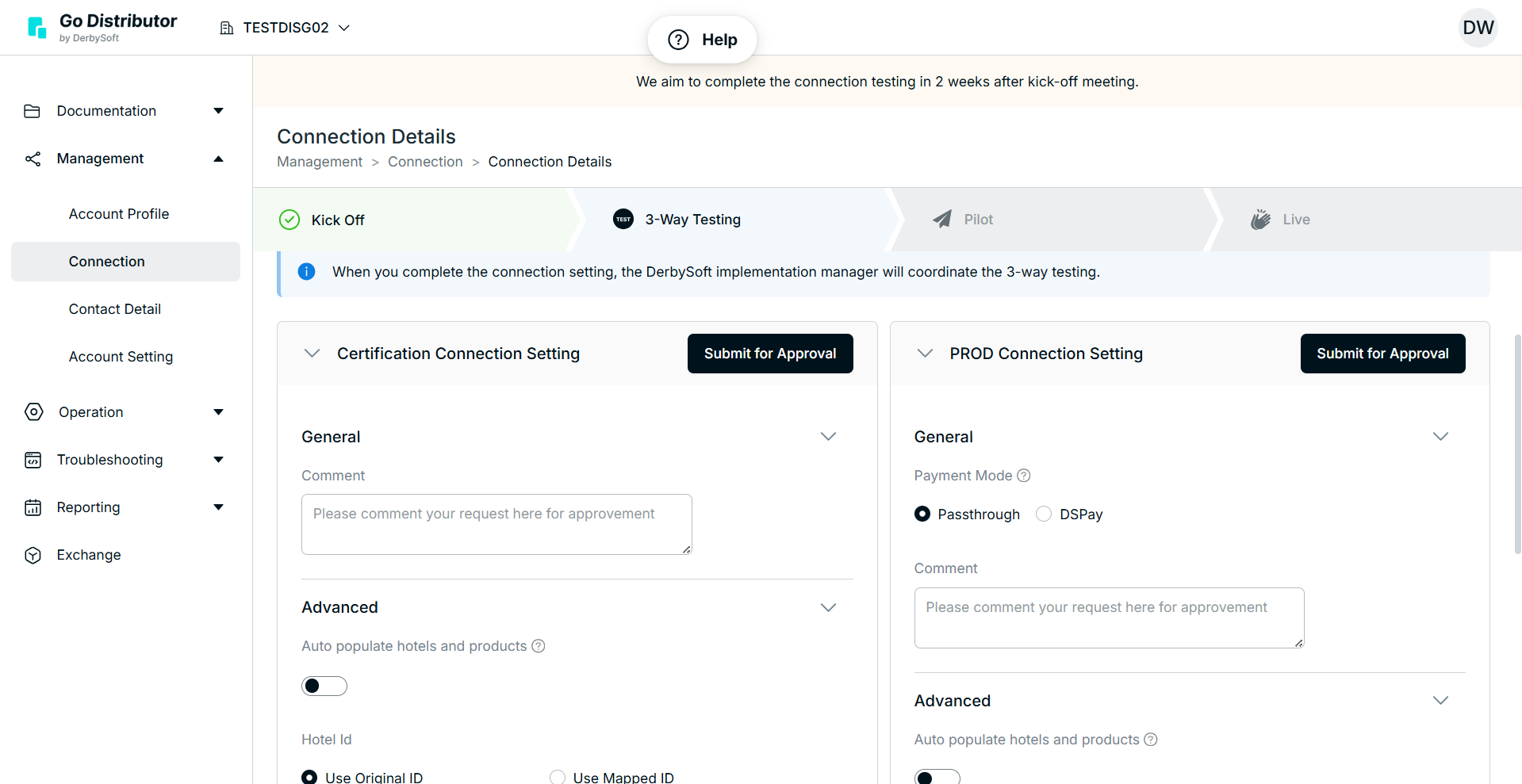
When starting a new connection—or editing an existing one—configure DSPay in the PROD Connection Setting and submit for approval.
Step 3 Approval and wallet binding
The DS Admin will review and approve your setup. During approval, the CM will bind your wallet to the connection. If no wallet appears in the dropdown, contact the Finance team to check your wallet setup status.
Did you find it helpful? Yes No
Send feedback